- EAMS20 - Create Simulation Period ID
- Set Simulation Run Status to "Create Mass Simulation Indexes"
- EAMS10 - Create Simulation Indexes for Mass Simulation
- SAP registers installation to be simulated into table EBISIM
- EAMS20 - Create Simulation Period ID
- Set Simulation Run Status to "Bill Mass Simulation Index"
- EAMS01 - Mass Billing of Sim Indexes
- RSA7 - BW Delta Queue Maintenance
- To view extracted data stored in data source 0UC_SALES_SIMU_01
Monday, January 8, 2018
Unbilled Revenue Summary
In short, steps to perform unbilled revenue in SAP is:


Friday, October 6, 2017
Missing "Enterprise Service Browser" button SE80
If you launched t-code SE80 but couldn't see "Enterprise Service Browser" button like the following screenshots, what do you need to do?

Go to Utilities -> Settings

Check "Enterprise Service Browser"
 You will able to browse enterprise services now:


Go to Utilities -> Settings

Check "Enterprise Service Browser"


Thursday, August 17, 2017
Collection Strategy: BRF: Option 2: Step 5: Define Additional Settings for Application Class
- Go to SPRO -> Financial Accounting (New) -> Contract Accounts Receivable and Payable -> Business Transactions -> Dunning -> Dunning by Collection Strategy -> Settings in Business Rule Framework -> Define Additional Settings for Application
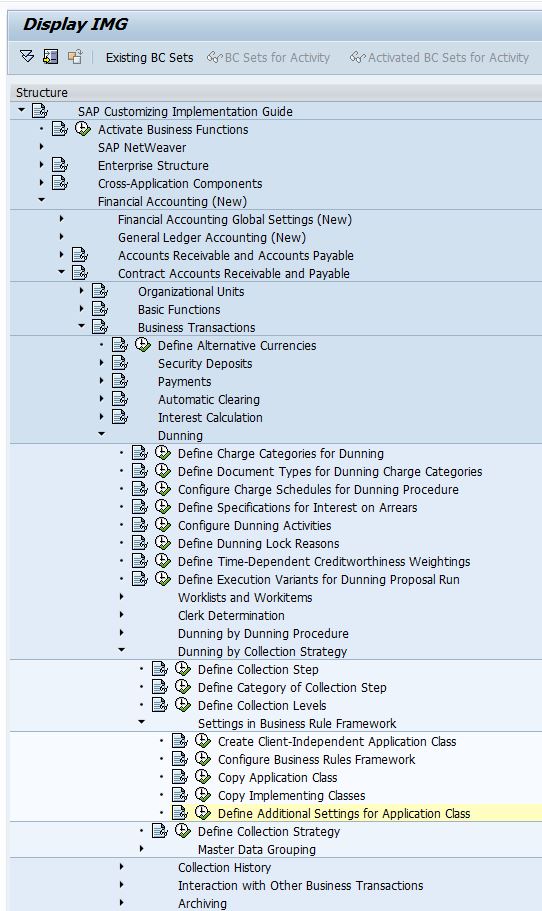
- Configure application class and choose appropriate Application, for collection strategy, this should be Collections Management.

|
Field
Name
|
Usage
|
|
Application
Class
|
Application Class that you have created for
Collection Strategy
|
|
Application
|
Application that is calling this application class:
·
TOBJ - Object-Based Tax Calculation and
Validation
·
TFOR - Form-Based Tax Calculation and
Validation
·
COLL - Collections Management
·
PTAX
·
0001
·
REF1 - Refund Process
·
REG1 - Registration Process
|
|
Time-Dependent
|
Whether the BRF objects are time-dependent
|
|
NoEndTime
|
Excluding End Time, for example, the validity date is from 2/1/2013 to 2/1/2015, if this is
selected, 2/1/2015 will be excluded.
|
|
Time Unit
|
Day or Hour
|
Thursday, July 27, 2017
Collection Strategy: BRF: Option 2: Step 5: Create Second Action to Determine Collection Step
- Right click on "Actions" node, select "New Action".

- Enter Action Name.

- Enter Short Text Name

- Add Implementing Class: 0FICACS001, after that, click "Save" button.

Tuesday, June 27, 2017
Collection Strategy: BRF: Option 2: Step 4: Create First Action to Obtain Context
- Right click on "Actions" node, select "New Action".

- Enter Action Name

- Enter Short Text Name

- Add Implementing Class: 0FICAIN001.

Sunday, June 18, 2017
Billing:Delete Adjustment Reversal Document Number from Billing Order: EA24
This transaction is used to cancel a reversal adjustment billing orders.

Steps:
- Reverse the new print document and corresponding new billing document resulted from adjustment reversal (difference bill).
- Reverse the corresponding print document of the original billing document of adjustment reversal (the billing documents are stated in ETRG-SC_BELNR).
- Enter the billing document numbers (original billing documents) of the adjustment reversal from the billing order and hit execute buttons.
- Re-bill and re-invoice to generate new billing documents and new print documents that should have same result as original billing documents and original print documents.
Effects:
- When step 1 is executed, original billing document's new billing document number (ERCH-SC_BELNR_N) field is cleared as well.
- But the billing document number for adjustment reversal (ERCH-SC_BELNR_H) on the reversed new billing document remains intact.
- When step 3 is executed, the adjustment reversal document number (ETRG-SC_BELNR) from billing orders will be cleared. And these new billing orders are ready to be billed to generate normal bill instead of difference bill.
Prerequisites:
- Print document of the billing documents stated in (ETRG-SC_BELNR) must be reversed in order to delete adjustment reversal billing document from billing orders. Thus, be careful when using EA21 to create adjustment reversal.
Friday, May 26, 2017
Collection Strategy: BRF: Option 2: Step 3: Create Event
- Right click at "Events" node, click "New Event".

- Enter the event name, this will be configured in Collection Strategy.

- Implementing Class: 0FICAEVENT

- Controller Class: CL_FKK_BRF_EVENT

- After that, click "Save" button.

Subscribe to:
Posts (Atom)