Showing posts with label ABAP. Show all posts

Saturday, August 4, 2012

Debug FQ Events

In SAP IS-U, most of the FICA and Billing related enhancements are using FQ-Events. To debug/ find out what FQ Events to use for certain transaction, use the following steps:
1. In command field, enter /h

2. When Debugger Controls Session is launched, set break point for  FM 'FKK_FUNC_MODULE_DETERMINE '.

3. Continue and Debugger will stop at FM 'FKK_FUNC_MODULE_DETERMINE '.

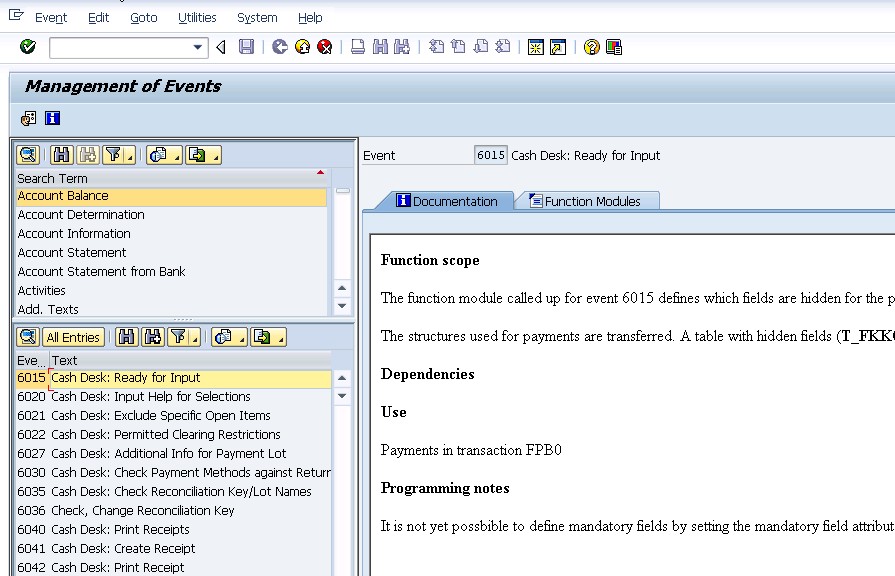
4. I_FBEVE is the FQ Event Number, and at the end of this FM, T_FBSTAB will contains all the FMs that will be called under this event. You can get more information of this event via command FQEVENTS.

Thursday, September 22, 2011

Debug Mass Activity Transactions (DBUG)

SAP has a reserve command DBUG for you to debug mass activity transactions such as FPVA (Dunning Proposal).

Once you enter DBUG at command field and hit return key.


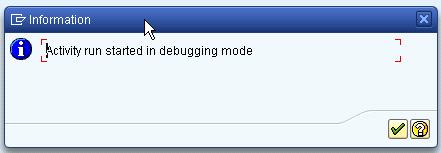
You will see this Pop Up Message.


When you start running the program, the debugger will be launched.

Friday, July 22, 2011

Debugger Variant

Debugger Variant allow you to save your current debugger layout, breakpoints, settings, and options into database or file. These components can be loaded again at later days. This comes very handy especially when your project team involves offshore support, or you need to pass the problem that you were working on to your co-workers. By default, there is a debugger variant named START_UP which is always loaded when you start the New ABAP Debugger. You can overwrite this debugger variant if you want to load the current setting every time you launch the debugger. Otherwise, you can save it with other name and then load it via Debugger -> Debugger Session -> Load when you need it.

For Example, I want to find out why and when SAP that flag EABLG-UNTERDR to 'X'. Thus, I use where-used list to find out all the program.

As you can see there is a lot of programs changing the value of this field. It would be troublesome if I want to debug same pieces of code again in the future. Thus, after setting the session breakpoint, I launch debugger.


And I go to save debugger variant.

Next time, when I launch debugger again. I will just need to go to Debugger Session and then load the debugger variant and all the break points are waiting for me now.

Tuesday, June 21, 2011

FREE_SELECTIONS_WHERE_2_EX

This FM works the other way round from FM 'FREE_SELECTIONS_EX_2_WHERE'. It converts select statement's where condition into expression that you can use in FREE_SELECTIONS_EX_2_WHERE. I re-use the example in my previous post here.
Conditions:
WHERE hvorg EQ '0600'
AND ( tvorg EQ '0010'
OR tvorg EQ '0011' )
AND augst EQ ''
AND augrd NE '05'. 
 
Input:

Result:

Friday, February 11, 2011

Editor Lock

Editor Lock prevents other people to modify your program. Somehow, there are cases where you forget to remove it. What happened if other people want to modify your program in the future, but you are no longer involved in that system?

I found 2 blogs provide solution that is quite useful:
  1. ABAP Program to Lock/Unlock the ABAP Editor Lock Field 
  2. SAP ABAP Program EDITOR LOCK/UNLOCK 
Both of them are doing the same thing. Ultimately, you just have to update the record in table TRDIR, set the field EDTX = 'X' if you want to lock it, and set it SPACE if you want to unlock it. 

Monday, July 19, 2010

System Debugging

System Debuggin is used to debug a system program. Debugger will skip this program if System Debugging is not turned on even though you had set the session breakpoint.
How to check the program is system program or not? Go to -> Attribute, Look for Program Status field, "S" represent System Program.


How to turn on System Debugging?
  1. Enter "/hs" instead of "/h" in Command Field.
  2. Go to System -> Utilities -> Debug System.
  3. In debugging session, before reaching the system program, go to Setting -> Display/Change Debugger Settings, and change the debugger setting
  4. In debugging session, before reaching the system program, go to Setting -> System Debugging On/Off.

Tuesday, June 22, 2010

FREE_SELECTIONS_EX_2_WHERE


This FM helps to construct WHERE conditions of a select statement. This is useful if you have the requirement to  implement a dynamic select statement.

How to implement it?
You have to initiate Type Group RSDS by using TYPE-POOL keyword. After that, you need a internal table and structure of type RSDS_EXPR. This will store the expression of the selection:

RSDS_EXPR-TABLENAME -> Table Name
RSDS_EXPR-EXPR_TAB-> Itab stores the expressions
  • RSDS_EXPR-EXPR_TAB-LOGOP              -> Logical Operation ("AND", "OR", "NOT", only)
  • RSDS_EXPR-EXPR_TAB-ARITY                -> Priority of Logical Operation
  • RSDS_EXPR-EXPR_TAB-FIELDNAME     -> Table's field name for selection
  • RSDS_EXPR-EXPR_TAB-OPTION             -> Selection Option ("EQ", "BT", "CP", "GT", and etc.)
  • RSDS_EXPR-EXPR_TAB-LOW                   -> Value - Low
  • RSDS_EXPR-EXPR_TAB-HIGH                  -> Value - High
Note: If the intended WHERE condition is:
WHERE hvorg EQ '0600'
   AND ( tvorg EQ '0010'
        OR tvorg EQ '0011' )
   AND augst EQ ''
  AND augrd NE '05'.

RSDS_EXPR-EXPR_TAB shall be populated in this manner:

The result would be:

Monday, June 21, 2010

How to debug Background Job (Part 3)

1. During implement your code, Call FM 'C160_HOLD_FOR_DEBUG'.
2. Go to System -> User Profile -> Own Data or T-Code SU03.

3. Add a User Master Parameter ID, 'ESN' and flag it with 'X'. Data stored in Table USR05.

4. This FM will run a infinite loop now and you can debug via SM50.

Thursday, June 17, 2010

How to debug Background Job (Part 2)

1. Write an infinite loop in your code.
DATA: lv_infinite TYPE i.

WHILE lv_infinite EQ 0.
ENDWHILE.
2. Then go to SM50, select the program and then go to:
Program/Session -> Program ->Debugging

Tuesday, June 15, 2010

How to debug Background Job (Part 1)


1. Go to SM37, choose the background job that you want to debug.
2. Enter 'JDBG' (Without '/') at Command Field.

Tuesday, January 12, 2010

Print Workbench - Introduction

Print Workbench is central development environment for creating standardized outgoing correspondence. It consists of 2 main sub objects:
  • Form Class - provides modeling and data access. (Transaction Code: EFCS)
  • Application Form - contain user exits, and symbols provided by form class, forms can be either Smart Forms, SAP Script, or PDF-based Forms. (Transaction Code: EFRM)
Note*: You can access to Print Workbench with via area menu PWB.
    Architecture of Print Workbench:
    1. Form Class provides data model and access.
    2. Forms and User Exits can access to the data model.
    3. Upon Application Form Activation, a function module will be generated automatically according to Form Class, Application Form, User Exits, and Form.
    4. SAP calls the generated function module during run time according to the configuration via SPRO.
    5. In conclusion, Application Form is called via Function Module "EFG_PRINT" or "EFG_PRINT_EXPANDED".


    Extraction Link 1 : Print Workbench

    Extraction Link 2 : Print Workbench

    Monday, January 11, 2010

    SWO1

    Business Object Builder -  Tool used for creating, implementing and testing business object types.

    Menu Path: Tools -> Business Framework -> BAPI Development -> Business Object Builder.

    Screen Shot:

    SPROXY

    ABAP Proxy Generation - generate ABAP proxy objects to an SAP system from an interface description in the SAP Exchange Infrastructure Integration Repository.

    Screen Shot:


    Thursday, January 7, 2010

    CLEAR vs. REFRESH vs. FREE

    I almost forgot what does these 3 used for, basically they are used to initialize internal table.
    1. CLEAR => Initialize the content and remain the allocated initial memory space, BUT,
      • because SAP allows using internal table(itab) with header line (enable you refer to structure and internal table with the same name). CLEAR itab will only clear the header line not the table body. => clear the content of the structure.
      • To clear the table content, you need to use CLEAR itab[]. 
      • IF you declared it without header line (for instance, DATA lt_itab TYPE STANDARD TABLE OF ever) CLEAR itab will clear the table content.
    2. REFRESH => similar as CLEAR, but REFRESH always refer to internal table content (table body). Thus, REFRESH itab = CLEAR itab[].
    3. FREE => similar to REFRESH, always refer to internal table content, but it does one more thing, it release the initial memory space allocated for the table body (table header is still exists). When you try to fill in value to internal table again, new memory space will be allocated for the table body.
    In Conclusion,
     
    C1/Case 1: DATA: itab TYPE STANDARD TABLE OF ever.
    C2/Case 2: DATA: itab TYPE ever OCCURS 0 WITH HEADER LINE.

    How to Initialize table content
    Refer to Work Area / Structure
    Refer to Table Content / Table Body
    Release
    Table Header Memory Space
    Release Table Body Memory Space
    CLEAR
    C1: CLEAR itab
    C2: CLEAR itab[]
    C1:
    C2: CLEAR itab.
    C1:
    C2: CLEAR itab[]


    REFRESH
    REFRESH itab


    FREE
    FREE itab


    Summarized from: Initializing Internal Tables.

      Monday, December 28, 2009

      LINES vs DESCRIBE


      1. LINES
      · LINES( itab ) => return number of rows of an itab in TYPE i .
      · DESCRIBE TABLE itab [LINES lin] [OCCURS n] [KIND knd].
      - [LINES lin] => lin TYPE i, contains number of filled lines in itab.
      - [OCCURS n] => n TYPE i, contains initial size of the table.
      - [KIND knd] => knd TYPE c, contains the table type of itab.
      o ‘T’ = Standard Table
      o ‘S’ = Sorted Table
      o ‘H’ = Hashed Table
      · DESCRIBE TABLE itab.
      - SY-TFILL TYPE i, contains number of filled lines in itab.