Table
|
Name
|
Remarks
|
TFKKBRFAPPLCLASS
|
Application Class: Additional Settings
|
|
TFKKBRFBUFFER
|
Reserved Buffer Elements
|
|
Showing posts with label Collection Strategy. Show all posts
Showing posts with label Collection Strategy. Show all posts
Friday, December 28, 2018
Collection Strategy: BRF: Tips 11: Config Tables


Tuesday, November 27, 2018
Collection Strategy: BRF: Tips 10: Default Context such as $FKKMAGRP not available
When creating expression to access context, if system default context such as $FKKMAGRP not found, check Additional Settings for Application Class. Make sure "Application" field is "Collections Management".

Friday, October 26, 2018
Collection Strategy: BRF: Tips 9: Missing Class ID when creating Event
Implementing Class 0FICAEVENT's Maintenance Class from Rule must be 0RULES when creating the event.
Thursday, July 26, 2018
Collection Strategy: BRF: Tips 6: How to Delete (Concrete) Action (BRFACT03)
- Go to t-code BRFAPL03, enter the application class and then click "Delete" button.

- Click "Yes" button.

Tuesday, June 26, 2018
Collection Strategy: BRF: Tips 5: How to Delete (Abstract) Action (BRFACS03)
- Go to t-code BRFACS03, enter the application class and then click "Delete" button.

- Click "Yes" button.

Saturday, May 26, 2018
Thursday, April 26, 2018
Collection Strategy: BRF: Tips 3: How to Delete Event (BRFEVT03)
- Go to t-code BRFEVT03, enter the application class and then click "Delete" button.

- Click "Yes" button.

Monday, March 26, 2018
Collection Strategy: BRF: Tips 2: How to Delete Implementing Class (BRFIMC03)
- Go to t-code BRFIMC03, enter the application class and then click "Delete" button.

- Click "Yes" button.

Monday, February 26, 2018
Collection Strategy: BRF: Tips 1: How to Delete Application Class (BRFAPL03)
- Go to t-code BRFAPL03, enter the application class and then click "Delete" button.

- Click "Yes" button.

Thursday, August 17, 2017
Collection Strategy: BRF: Option 2: Step 5: Define Additional Settings for Application Class
- Go to SPRO -> Financial Accounting (New) -> Contract Accounts Receivable and Payable -> Business Transactions -> Dunning -> Dunning by Collection Strategy -> Settings in Business Rule Framework -> Define Additional Settings for Application
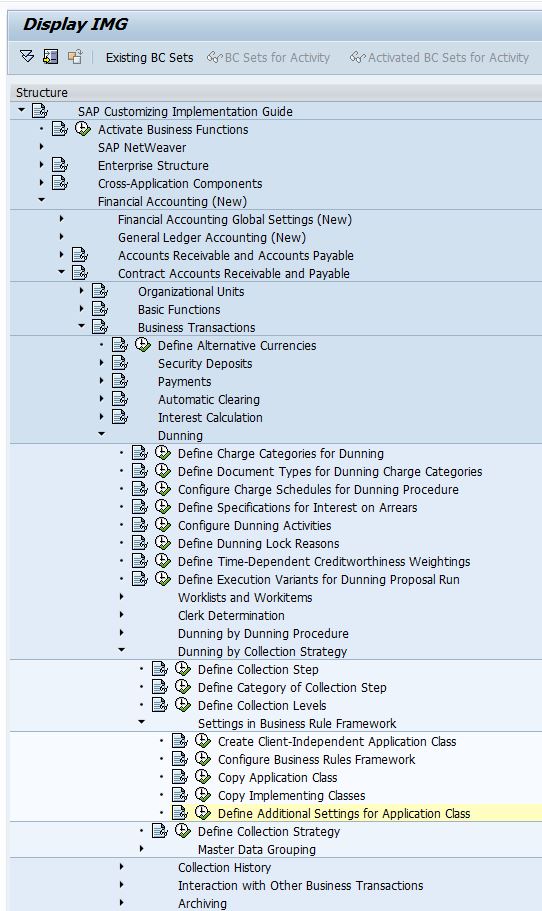
- Configure application class and choose appropriate Application, for collection strategy, this should be Collections Management.

|
Field
Name
|
Usage
|
|
Application
Class
|
Application Class that you have created for
Collection Strategy
|
|
Application
|
Application that is calling this application class:
·
TOBJ - Object-Based Tax Calculation and
Validation
·
TFOR - Form-Based Tax Calculation and
Validation
·
COLL - Collections Management
·
PTAX
·
0001
·
REF1 - Refund Process
·
REG1 - Registration Process
|
|
Time-Dependent
|
Whether the BRF objects are time-dependent
|
|
NoEndTime
|
Excluding End Time, for example, the validity date is from 2/1/2013 to 2/1/2015, if this is
selected, 2/1/2015 will be excluded.
|
|
Time Unit
|
Day or Hour
|
Thursday, July 27, 2017
Collection Strategy: BRF: Option 2: Step 5: Create Second Action to Determine Collection Step
- Right click on "Actions" node, select "New Action".

- Enter Action Name.

- Enter Short Text Name

- Add Implementing Class: 0FICACS001, after that, click "Save" button.

Tuesday, June 27, 2017
Collection Strategy: BRF: Option 2: Step 4: Create First Action to Obtain Context
- Right click on "Actions" node, select "New Action".

- Enter Action Name

- Enter Short Text Name

- Add Implementing Class: 0FICAIN001.

Friday, May 26, 2017
Collection Strategy: BRF: Option 2: Step 3: Create Event
- Right click at "Events" node, click "New Event".

- Enter the event name, this will be configured in Collection Strategy.

- Implementing Class: 0FICAEVENT

- Controller Class: CL_FKK_BRF_EVENT

- After that, click "Save" button.

Wednesday, April 26, 2017
Collection Strategy: BRF: Option 2: Step 2: Add FICA Implementing Class (BRFIMC01)
- Go to t-code BRFIMC01.

- Add the following implementing classes to the application class:
- 0FICACS001
- Short Text: Determine Collection Step and Evaluation Number
- Class Type: A
- Implementing Class: CL_FKK_BRF_AC_COLLECTION
- Maintenance Class: CL_FKK_BRF_AC_COLLECTION_MNT
- Icon/Symbol: @BC@
- Object Name for Title: Define Collection Step
- Title for Create: Create Rule &1 Collection Step and Valuation Number
- Title for Change: Change Rule &1 Collection Step and Valuation Number
- Title for Display: Display Rule &1 Collection Step and Valuation Number

- 0FICADR001
- Short Text: Access Context Information
- Class Type: F
- Implementing Class: CL_FKK_BRF_DATA_REQUEST
- Maintenance Class: CL_FKK_BRF_DATA_REQUEST_MNT
- Icon/Symbol: @71@
- Object Name for Title: Access Context
- Title for Create: Access Context Information Create &1
- Title for Change: Access Context Information Change &1
- Title for Display: Access Context Information Display &1

- 0FICAEVENT
- Short Text: Impl.Class for Events
- Class Type: E
- Implementing Class: CL_FKK_BRF_EVENT
- Maintenance Class: CL_EVENT_MNT_BRF
- Icon/Symbol: @5M@
- Object Name for Title: Event
- Title for Create: Create Event &1
- Title for Change: Change Event &1
- Title for Display: Display Event &1

- Maintenance Class for Rules: 0RULES

- 0FICAIN001
- Short Text: Obtain Context Data
- Class Type: A
- Implementing Class: CL_FKK_BRF_AC_BUFFER_INIT
- Maintenance Class: CL_FKK_BRF_AC_BUFFER_INIT_MNT
- Icon/Symbol: @5Y@
- Object Name for Title: Obtain Context Data
- Title for Create: Get Context Data &1 Create
- Title for Change: Get Context Data &1 Change
- Title for Display: Get Context Data &1 Display

- 0FICAMSG001
- Short Text: Issue Message
- Class Type: A
- Implementing Class: CL_FKK_BRF_AC_MESSAGE
- Maintenance Class: CL_AC_MESSAGE_MNT_BRF
- Icon/Symbol: @0S@
- Object Name for Title: Issue Message
- Title for Create: Issue Message Create &1
- Title for Change: Issue Message Change &1
- Title for Display: Issue Message Display &1

- 0RULES
- Short Text: Rules for Events
- Class Type: R
- Maintenance Class: CL_RULES_MNT_BRF
- Icon/Symbol: @03@
- Object Name for Title: Rules in Event
- Title for Change: Change Rule &1
- Title for Display: Display Rule &1

Sunday, March 26, 2017
Collection Strategy: BRF: Option 2: Step 1: Configure Business Rules Framework (BRF)
- Go to SPRO -> Financial Accounting (New) -> Contract Accounts Receivable and Payable -> Business Transactions -> Dunning -> Dunning by Collection Strategy -> Settings in Business Rule Framework -> Configure Business Rules Framework

- Click on "Wizard" button.

- Start: Click "Continue" button.

- Define Application Class (Cross-Client): Enter Application Class Name and Description, After that click "Continue" button.

- Define Cross-Client Settings:
- Trace Class: CL_TRACE_BRF
- Impl. Tree Class: CL_WB_TREE_DEFAULT_BRF
- General Services: CL_FKK_BRF_APPLCLASS_SERVICES. After that, click "Continue" button.

- Select Object Types (Implementing Classes): Click "Continue" button.

- Edit Short Texts of Object Types: Click "Continue" button.

- Define the First Context: Click "Continue" button. (We don't want to create Context over here because Dunning is getting Context differently)

- Define the First BRF Event: Click "Continue" button. (We don't want to create Event over here because Dunning is using different Implementing Class)

- Complete: Click "Complete" button.

Sunday, February 26, 2017
Collection Strategy: BRF: Option 1: Step 1: Create Client-Independent Application Class
- Go to SPRO-> Financial Accounting (New) -> Contract Accounts Receivable and Payable -> Business Transactions -> Dunning -> Dunning by Collection Strategy -> Settings in Business Rule Framework -> Create Client-Independent Application Class.

- Enter Application Class Name

- Enter Application Class Description and then click "Save" button.

Subscribe to:
Posts (Atom)