Thursday, March 8, 2018

Unbilled Revenue: Step 2 - EAMS10 - Create Simulation Indexes for Mass Simulation


EAMS10 - Create Simulation Indexes for Mass Simulation 

Specify "Simulation Period ID" created in Step 1, and fill up the selection screen if needed. SAP will group all the installations fulfilled the conditions for simulation and update into table EBISIM.

Monday, February 26, 2018

Collection Strategy: BRF: Tips 1: How to Delete Application Class (BRFAPL03)


  1. Go to t-code BRFAPL03, enter the application class and then click "Delete" button.
  2. Click "Yes" button.


Thursday, February 8, 2018

Unbilled Revenue: Step 1 - EAMS20 - Create Simulation Period ID

EAMS20 - Create Simulation Period ID

Field Name
Usage
Sim. Per. ID
Unique ID to represent the simulation period
Explanation
Description for Simulation Period ID
Sim. Start
This date specifies the start of the period for which mass simulation is executed. Important: The simulation period must begin on the first day of the month.
Sim. End
This date specifies the end of the period for which mass simulation is executed. Important: The simulation period must end on the last day of the month.
Sim. Run Status
- Create mass simulation indexes: You may create simulation indexes using this status. You are not permitted to bill or delete the simulation indexes.
Key date
If Simulation type with Check Key Date indicator is set.
Simulation Type
The mass simulation type controls the processing of simulation indexes during mass simulation.

Monday, January 8, 2018

Unbilled Revenue Summary

In short, steps to perform unbilled revenue in SAP is:

  1. EAMS20 - Create Simulation Period ID 
    • Set Simulation Run Status to "Create Mass Simulation Indexes"
  2. EAMS10 - Create Simulation Indexes for Mass Simulation 
    • SAP registers installation to be simulated into table EBISIM
  3. EAMS20 - Create Simulation Period ID 
    • Set Simulation Run Status to "Bill Mass Simulation Index" 
  4. EAMS01 - Mass Billing of Sim Indexes 
  5. RSA7 - BW Delta Queue Maintenance 
    • To view extracted data stored in data source 0UC_SALES_SIMU_01

Friday, October 6, 2017

Missing "Enterprise Service Browser" button SE80

If you launched t-code SE80 but couldn't see "Enterprise Service Browser" button like the following screenshots, what do you need to do?


Go to Utilities -> Settings


Check "Enterprise Service Browser"

You will able to browse enterprise services now:


Thursday, August 17, 2017

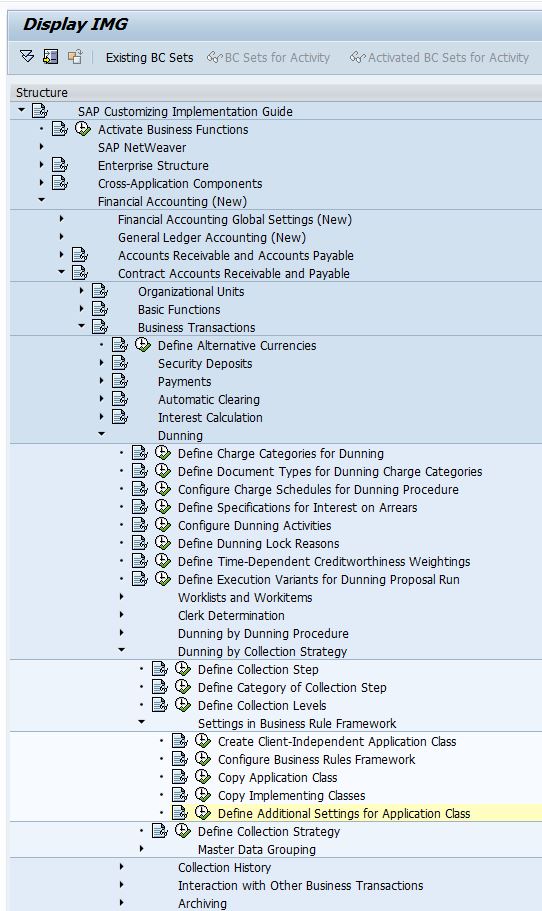
Collection Strategy: BRF: Option 2: Step 5: Define Additional Settings for Application Class


  1. Go to SPRO -> Financial Accounting (New) -> Contract Accounts Receivable and Payable -> Business Transactions -> Dunning -> Dunning by Collection Strategy -> Settings in Business Rule Framework -> Define Additional Settings for Application
  2. Configure application class and choose appropriate Application, for collection strategy, this should be Collections Management.

Field Name
Usage
Application Class
Application Class that you have created for Collection Strategy
Application
Application that is calling this application class:
·         TOBJ - Object-Based Tax Calculation and Validation
·         TFOR - Form-Based Tax Calculation and Validation
·         COLL - Collections Management
·         PTAX                                                           
·         0001                                                           
·         REF1 - Refund Process
·         REG1 - Registration Process
Time-Dependent
Whether the BRF objects are time-dependent
NoEndTime
Excluding End Time, for example, the validity date is  from 2/1/2013 to 2/1/2015, if this is selected, 2/1/2015 will be excluded.
Time Unit
Day or Hour

Thursday, July 27, 2017

Collection Strategy: BRF: Option 2: Step 5: Create Second Action to Determine Collection Step


  1. Right click on "Actions" node, select "New Action". 
  2. Enter Action Name.
  3. Enter Short Text Name
  4. Add Implementing Class: 0FICACS001, after that, click "Save" button.